S7 protocol
Warning: This module establishes a direct Ethernet communication via Siemens S7 protocol! This is no Profinet communication!
Information: The S7 protocol is the backbone of Siemens communication. Its Ethernet implementation is based on ISO TCP (RFC1006). This module is based on the implementation of Snap7. EasySightPro® takes over the synchronization of the data for inputs and outputs in the implementation.
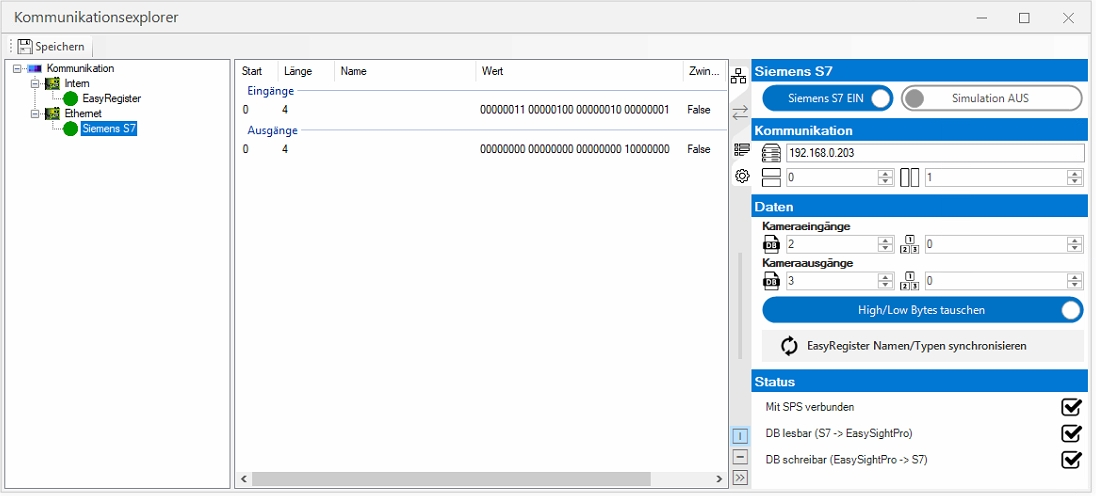
The adjustment of the communication parameters is done in the communication explorer.
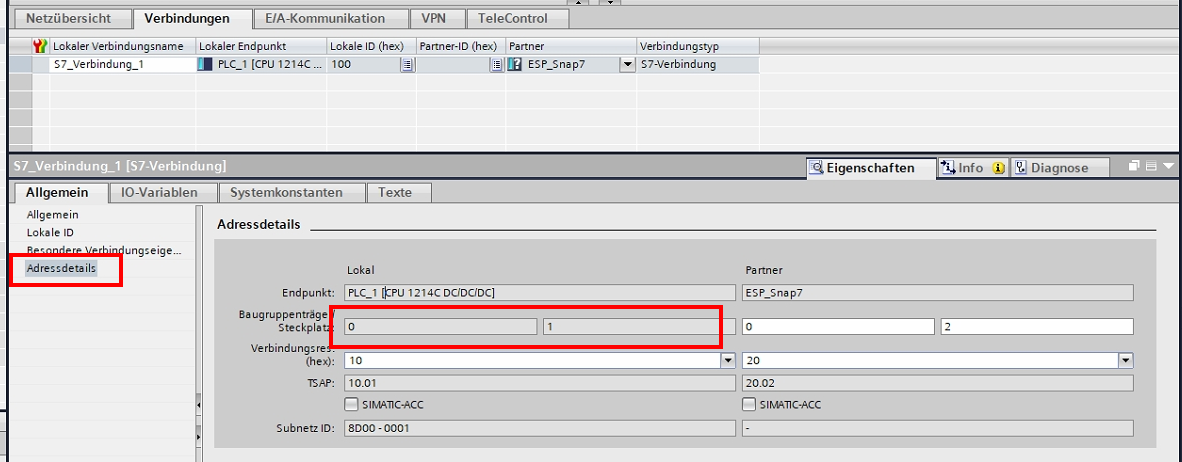
Information: Exemplary integration via Siemens Tia Portal.
To do this, select the corresponding fieldbus card on the left in order to then be able to make the corresponding settings in the right part of the communication explorer.
Information: Make sure that the corresponding communication module is loaded..
| Setting | Value |
|---|---|
| Siemens S7: On/Off | Enables/disables the communication module |
| Siemens S7: Simulation | Here one specifies whether this is to be simulated. This enables the test operation of the interface without existing PLC. |
| Communication: Address | IP address of the controller |
| Communication: Rack number |
Rack/slot number of the connection according to table or from Tia Portal.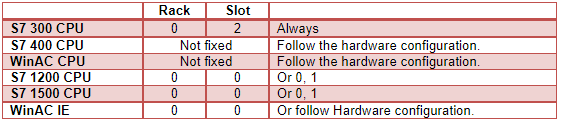
|
| Communication: Slot number | |
| Data: Camera inputs DB | DB number for camera inputs (PLC -> camera) |
| Data: Camera inputs offset | Offset of the data within the DB |
| Data: Camera outputs DB | DB number for camera outputs (camera -> PLC) |
| Data: Camera outputs offset | Offset of the data within the DB |
| Data: Swap bytes | Here you specify whether the order of the bytes on the entire interface is to be swapped. The default byte order is big-endian, for little-endian swapping must be enabled. |
| Data: Synchronize EasyRegister | Sets once the names and data types of all used EasyRegister transfers in the EasyRegisters. |
| Status: Connected to PLC | Connection status to the PLC. PLC reachable. Logon successful. |
| Status: DP readable | S7 -> EasySightPro. DB for camera inputs readable |
| Status: writable | EasySightPro -> S7. DB for camera outputs writeable. |
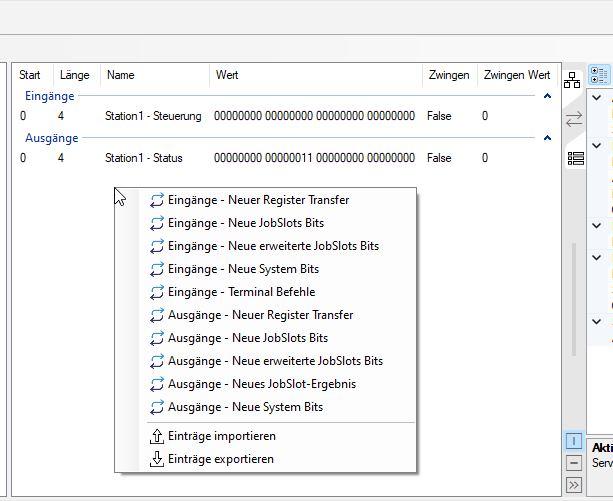
In the middle part of the communication explorer, you can now add individual fieldbus blocks by right-clicking, or edit or delete existing ones.
You can access the monitoring and status check via the Administration menu.
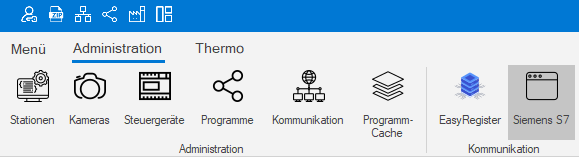
Here the status and values of the inputs and outputs of the communication can be monitored.
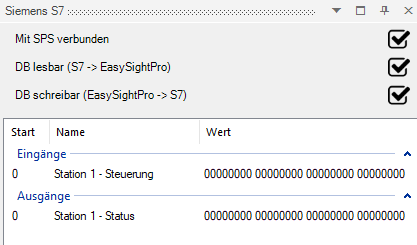
The status of communication between EasySightPro® and the external control is displayed.
Here you can see if there is a connection to the external controller and if the read/write access is working..
The assignment, naming and the current values of the parameterized inputs and outputs follow below.
The window can be pinned and thus remains visible.
Possible configuration errors:
| State | Connected to PLC | DB readable | DB writeable |
|---|---|---|---|
| Configuration OK |  |
|
|
| PLC address incorrectly configured |

TCP: Connection Error |
|
|
| Data block for reading and writing incorrectly configured |
|
CPU: Item not available |
CPU: Item not available |
| Write data block is too small |
|
|
CPU: Item not available |
| Slot number incorrectly configured |
TCP: Error receiving Data |
|
|